
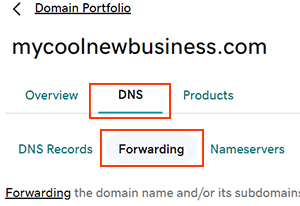
Forwarding a domain name is simple. It involves redirecting visitors to another website.
This process can be crucial for businesses and individuals alike. Imagine you have multiple domain names. You want them all to lead to your main website. Or maybe you bought a new domain and need it to redirect to an existing site.
Forwarding a domain name makes this possible. It ensures that anyone who types in the alternate domain reaches the correct destination. This guide will walk you through the steps to forward a domain name. Whether you’re new to this or looking for a refresher, you’ll find clear, easy-to-follow instructions. Let’s get started on making your domains work better for you.
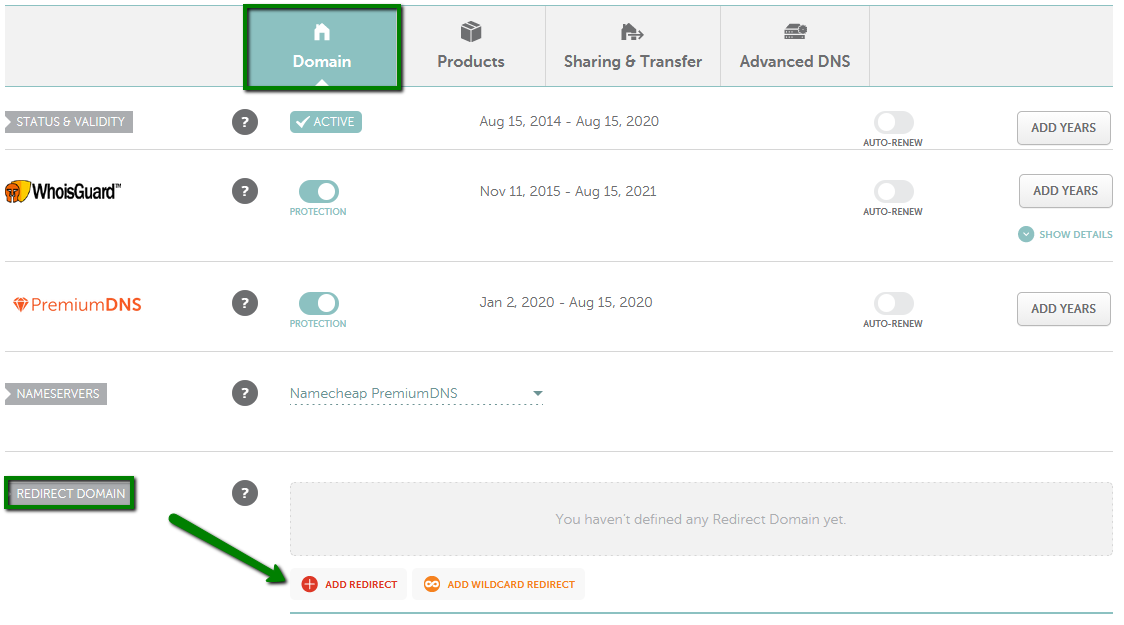
Credit: www.namecheap.com
Choosing A Domain Registrar
Before forwarding a domain name, you need to choose the right domain registrar. This step is crucial as it affects your website’s performance and security. Here, we guide you through the factors to consider and popular domain registrars to help you make an informed decision.
Factors To Consider
- Pricing: Compare prices for domain registration and renewal.
- Customer Support: Opt for registrars offering 24/7 support.
- Ease of Use: Ensure the interface is user-friendly.
- Additional Services: Look for services like email hosting and SSL certificates.
- Security Features: Check for features like two-factor authentication.
| Factor | Importance |
|---|---|
| Pricing | High |
| Customer Support | High |
| Ease of Use | Medium |
| Additional Services | Medium |
| Security Features | High |
Popular Domain Registrars
- GoDaddy: Known for extensive customer support and a wide range of services.
- Namecheap: Offers competitive pricing and strong security features.
- Bluehost: Ideal for beginners with easy-to-use tools and excellent customer support.
- HostGator: Known for reliability and affordable pricing plans.
- Google Domains: Provides simple management and strong integration with other Google services.
Each of these registrars offers unique benefits. Choose the one that best fits your needs.

Credit: www.youtube.com
Accessing Your Domain Settings
Understanding how to forward a domain name begins with accessing your domain settings. This step is vital as it allows you to control where your domain points. Whether you’re forwarding to a new website or another domain, the process starts here.
We’ll guide you through logging into your account and navigating to the domain management section. These steps are straightforward and essential for successfully forwarding your domain.
Logging Into The Account
First, you need to log into your domain registrar account. Use your username and password to access your account. These credentials were created during the registration process.
If you have forgotten your password, use the “Forgot Password” link. This link helps you reset your password quickly. Once logged in, proceed to the next step.
Navigating To Domain Management
After logging in, find the domain management section. This section is usually located in the dashboard or main menu. Look for options like “My Domains” or “Domain Management.”
Click on this option to view a list of your registered domains. Select the domain you want to forward. This action will open the domain settings page, where you can make the necessary changes.
Finding The Forwarding Option
Finding the forwarding option for your domain is crucial. This lets you redirect traffic to another site. Most domain registrars provide this feature. Follow these simple steps to locate it.
Locating Forwarding Settings
First, log in to your domain registrar account. Find the list of your domains. Click on the domain you want to forward. Look for settings related to the domain. You might see options like “DNS Management” or “Domain Settings.” These sections often contain the forwarding settings.
Different Terminologies
Different registrars use different terms. Common terms include “URL Forwarding,” “Domain Redirect,” or “Forward Domain.” Don’t get confused by the terminology. They all serve the same purpose: redirecting visitors to another site.
Sometimes, you might see “301 Redirect” or “302 Redirect.” A 301 redirect is permanent. A 302 redirect is temporary. Choose the one that fits your needs.
Now you know how to find the forwarding option. Follow these steps to ensure your domain points to the right place.
Setting Up Domain Forwarding
Setting up domain forwarding is a simple way to direct visitors from one domain to another. Whether you are rebranding or simplifying your web presence, domain forwarding is the answer. This guide will walk you through the steps to set it up.
Entering Destination Url
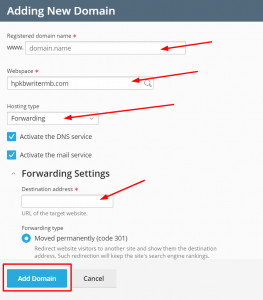
First, log in to your domain registrar’s account. Then, find the domain you wish to forward. Look for the Domain Settings or Domain Management section. Here, you will see an option to Enter Destination URL.
You need to enter the full URL of the destination website. Ensure the URL starts with http:// or https://. Double-check for any typos.
Configuring Forwarding Type
Next, choose the forwarding type. There are usually two options:
| Forwarding Type | Description |
|---|---|
| 301 Redirect | Permanent. Tells search engines the move is permanent. |
| 302 Redirect | Temporary. Indicates a temporary move to search engines. |
Most users should choose a 301 Redirect for long-term changes. It helps with SEO.
Save the settings and your domain forwarding setup is complete. Changes may take up to 48 hours to propagate.
Saving And Testing
Saving and testing your domain forwarding settings is crucial. It ensures that everything functions correctly and your visitors are seamlessly directed to the new location. This process involves saving your changes and then testing to confirm the forwarding works as expected.
Saving Changes
After entering the forwarding details, click on the “Save” button. This action stores your settings. Your domain name provider will process the changes. It may take a few minutes. Patience is key here.
Double-check the information before saving. Ensure the destination URL is correct. Any mistake could misdirect your visitors. Accuracy is vital for a smooth transition.
Testing The Forwarding
Once saved, you need to test the forwarding. Open a web browser. Enter your domain name in the address bar. Press “Enter” to navigate.
If the forwarding is set up correctly, you should be redirected. The browser should take you to the new URL. If not, revisit the settings. Check for any errors or typos.
Testing ensures that your visitors experience no issues. It confirms the forwarding works flawlessly. Regular checks can help maintain this functionality.
Troubleshooting Common Issues
Forwarding a domain name can be simple. But, sometimes, issues arise. Understanding common problems can help you fix them quickly.
Incorrect Url Entry
One common mistake is entering the wrong URL. Double-check the domain name. Ensure there are no extra spaces or typos. Even a small mistake can cause big issues. Correcting the URL often solves the problem.
Propagation Delay
Another issue is propagation delay. Changes to domain settings are not instant. It can take up to 48 hours. During this time, the domain might not work as expected. Be patient and wait for the changes to take effect.
Maintaining Your Forwarded Domain
Maintaining your forwarded domain is crucial for ensuring its functionality and reliability. Regular maintenance helps avoid issues and guarantees a seamless experience for visitors. Let’s explore some essential steps for maintaining your forwarded domain.
Regular Checks
Perform regular checks to ensure your domain forwarding is working correctly. Visit your forwarded domain to see if it redirects properly. Check on different devices and browsers. This helps catch any issues early and ensures a smooth user experience.
Updating Forwarding Details
Update forwarding details whenever your target URL changes. Log in to your domain registrar’s dashboard. Find the domain forwarding section and update the destination URL. Save the changes and test the forwarding to confirm it’s working.
Credit: www.hostpapa.com
Frequently Asked Questions
How Do I Forward A Domain?
To forward a domain, log into your domain registrar account. Find the domain settings, select “Forwarding,” and enter the desired destination URL. Save changes.
How Do I Transfer Ownership Of A Domain Name To Another Person?
To transfer a domain name, unlock the domain and get the authorization code. Provide the code to the new owner. The new owner initiates the transfer with their registrar. Confirm the transfer via email. The process completes in a few days.
Can I Redirect A Domain Without Hosting?
Yes, you can redirect a domain without hosting. Use domain registrar settings to set up domain forwarding.
How Do I Redirect A Url To Another Url?
To redirect a URL, use a 301 redirect in your. htaccess file or set it up via your website’s CMS settings.
Conclusion
Forwarding a domain name is a straightforward process. Follow the steps outlined. Choose the right method for your needs. Update your DNS settings correctly. Verify the forwarding works as expected. Remember to check for any errors. Keep your domain information updated.
This ensures smooth operation. Forwarding your domain can enhance your online presence. It’s a useful tool for managing websites. With these tips, you can do it easily. Happy domain forwarding!


