
To integrate Google Analytics with WordPress using plugins, you need a simple approach. Plugins can make the process easy and quick for anyone.
Google Analytics helps you track your website’s performance. It shows how visitors interact with your site. With WordPress plugins, you can set up Google Analytics without touching code. This is great for beginners and those who want a straightforward solution.
In this guide, you will learn how to connect Google Analytics to your WordPress site using plugins. Let’s make your website’s data work for you.
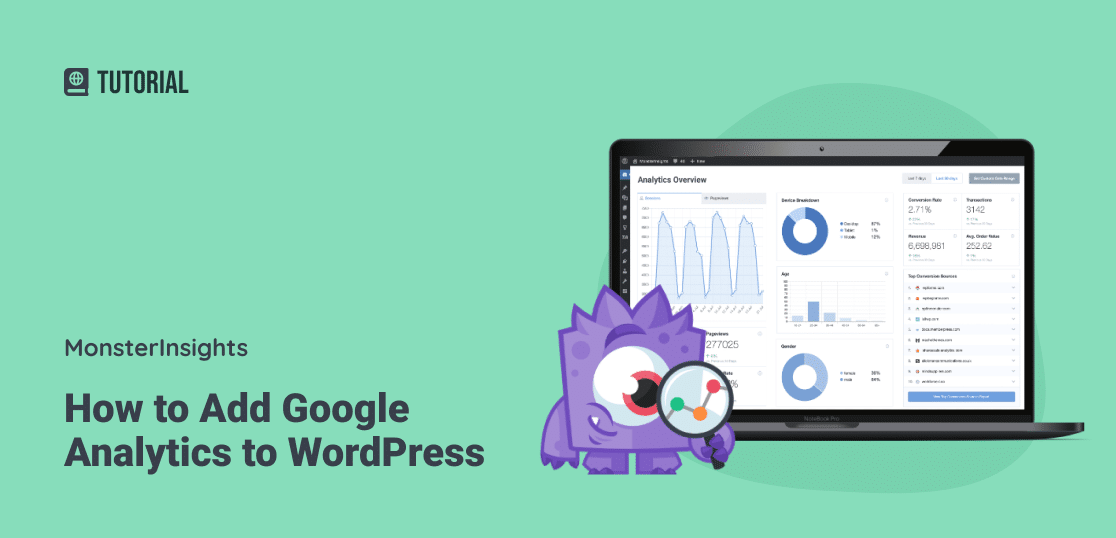
Credit: www.monsterinsights.com
Introduction To Google Analytics
Google Analytics is a powerful tool that helps website owners understand their audience. It provides detailed insights into visitor behavior, traffic sources, and user engagement. By integrating Google Analytics with your WordPress site, you can track and analyze website performance effectively.
Importance For Websites
Google Analytics offers several benefits for website owners:
- Improves User Experience: Understand visitor behavior to enhance site usability.
- Tracks Traffic Sources: Identify where your visitors are coming from.
- Measures Marketing ROI: Assess the effectiveness of your marketing campaigns.
- Monitors Site Performance: Keep an eye on page load times and bounce rates.
Key Features
Google Analytics comes with a variety of features:
| Feature | Description |
|---|---|
| Real-Time Reporting | Monitor activity as it happens on your site. |
| Audience Insights | Get detailed demographic and interest data. |
| Acquisition Reports | See how users find your website. |
| Behavior Reports | Understand how users interact with your site. |
| Conversion Tracking | Track goals and eCommerce transactions. |
These features make Google Analytics an essential tool for any website owner. With it, you can make data-driven decisions to improve your site and grow your audience.
Benefits Of Integrating Google Analytics With WordPress
Integrating Google Analytics with WordPress offers many benefits. It helps you understand your audience better and refine your marketing efforts. Let’s explore the key benefits of this integration.
Enhanced User Insights
With Google Analytics on your WordPress site, you get deeper insights into user behavior. You can track which pages are most popular and how long visitors stay. This data helps you understand what content resonates with your audience.
You can also see where your traffic comes from. Whether it’s organic search, social media, or direct visits, knowing this helps you focus your efforts. You can refine your content strategy based on what works best.
Here’s a quick overview of the insights you get:
- Page views and session duration
- Traffic sources
- Geographic locations of visitors
- Devices used by visitors
Improved Marketing Strategies
Google Analytics helps in enhancing your marketing strategies. By understanding which campaigns drive traffic, you can allocate your budget more effectively. You can also identify underperforming campaigns and tweak them for better results.
With goal tracking, you can measure the success of your marketing efforts. Whether it’s newsletter sign-ups or product purchases, you can see what’s working. This helps in optimizing your campaigns for better performance.
Consider the following aspects to improve your marketing strategies:
- Track campaign performance
- Allocate budget effectively
- Optimize underperforming campaigns
- Set and measure goals
Incorporating Google Analytics with WordPress provides actionable data. It helps you make informed decisions and grow your website more efficiently.
Choosing The Right Plugin
Integrating Google Analytics with WordPress can enhance your site’s performance. But choosing the right plugin is crucial. A good plugin should be easy to use and reliable. It should offer the features you need without slowing down your site.
Popular Plugins Overview
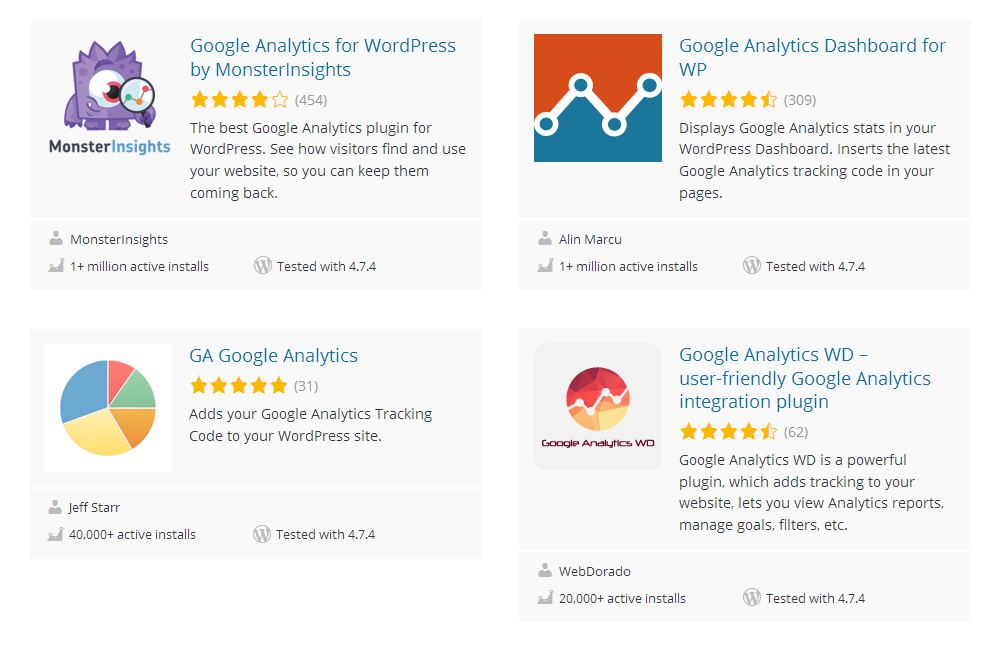
There are many plugins available to integrate Google Analytics with WordPress. Some popular options include MonsterInsights, ExactMetrics, and Analytify. Each of these plugins has unique features and benefits. MonsterInsights is known for its user-friendly interface. ExactMetrics offers detailed reports and insights. Analytify provides real-time stats right on your dashboard.
Criteria For Selection
When selecting a plugin, consider ease of use. A plugin should be simple to install and configure. Look for plugins with good reviews and regular updates. This ensures the plugin is reliable and secure.
Check the features offered by the plugin. Some plugins offer basic tracking, while others provide advanced insights. Choose a plugin that matches your needs.
Performance is another key factor. A plugin should not slow down your website. Look for lightweight plugins that are optimized for speed.
Support and documentation are also important. A good plugin should offer support in case you need help. It should also have clear documentation to guide you through the setup process.
Installing A Google Analytics Plugin
Installing a Google Analytics Plugin is a straightforward way to connect Google Analytics with your WordPress site. This method doesn’t require any coding skills and can be done in a few simple steps. Below, we will walk through the process of installing a Google Analytics plugin, from accessing the plugin repository to completing the installation.
Accessing The Plugin Repository
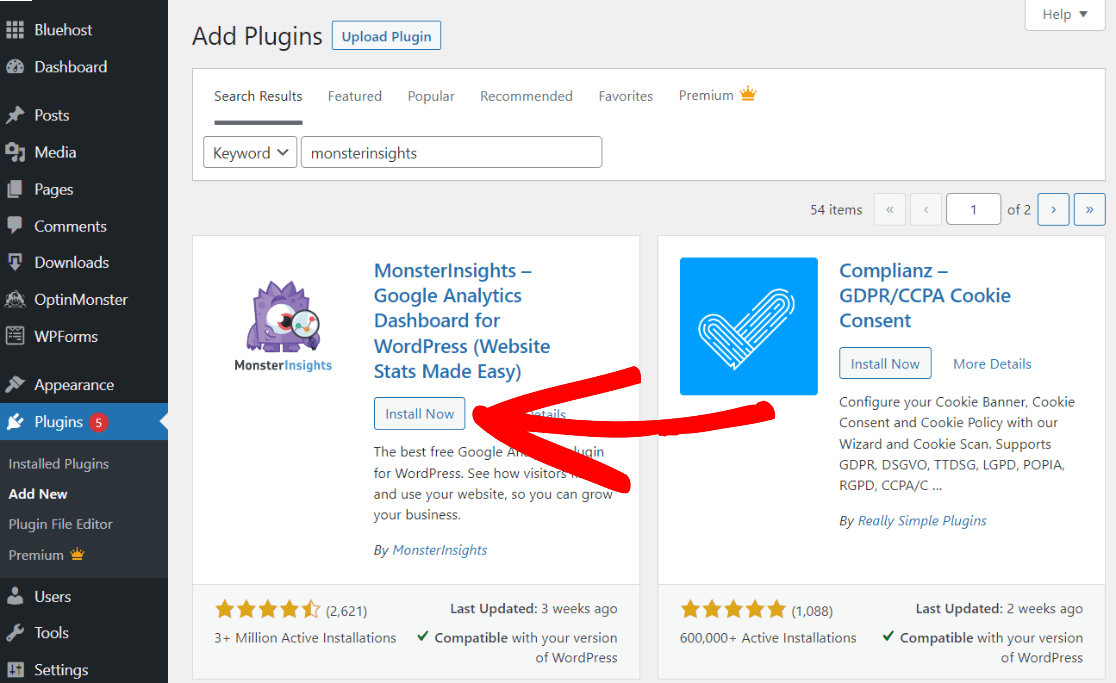
First, log in to your WordPress dashboard. On the left-hand side, you’ll find the Plugins menu. Click on Add New. This will take you to the plugin repository, where you can search for different plugins.
In the search bar, type Google Analytics. You will see a list of plugins related to Google Analytics. Look for a highly-rated one, such as MonsterInsights or ExactMetrics. These plugins are popular and easy to use.
Step-by-step Installation
- Once you find a suitable plugin, click on the Install Now button next to the plugin name.
- After the installation is complete, click the Activate button to enable the plugin on your site.
- Go to the Settings menu for the activated plugin. You will be prompted to connect your Google Analytics account.
- Follow the on-screen instructions to authorize the plugin to access your Google Analytics data. This usually involves signing into your Google account and allowing permissions.
- Once connected, you can configure the plugin settings according to your needs. This might include selecting the correct property and view from your Google Analytics account.
Now, your WordPress site is connected to Google Analytics. The plugin will start tracking your website data immediately.
Setting Up Google Analytics Account
Setting up a Google Analytics account is the first step in tracking your website’s performance. Understanding visitor behavior helps you improve your site. Follow these simple steps to get started.
Creating An Account
First, go to the Google Analytics website. Click on the “Start for free” button. Sign in with your Google account. If you don’t have one, create a new account. Once signed in, click on the “Set up for free” button. Fill in your account name. This name should be something easy to remember. Click “Next” to continue.
Now, you need to set up your property. A property is your website or app. Enter the website name. Input the website URL. Choose your industry category. Select your time zone. Click “Next” again.
Generating Tracking Id
In this step, you will generate your tracking ID. Select the data sharing settings you prefer. Read and agree to the terms of service. Click on the “Create” button. Your tracking ID will appear. It looks like “UA-XXXXXXXXX-X”. Copy this ID. You will use it later.
Now, you have created your Google Analytics account. And you have your tracking ID. You are ready to integrate Google Analytics with your WordPress site.
Connecting Google Analytics To WordPress
Integrating Google Analytics with your WordPress site is crucial. It helps you monitor and analyze your website’s traffic. Using plugins makes this process simple. No coding skills are needed. This section will guide you through the steps.
Entering Tracking Id
First, you need your Google Analytics tracking ID. You can find this ID in your Google Analytics account.
- Log in to your Google Analytics account.
- Click on the Admin tab.
- Under the Property column, select Tracking Info, then Tracking Code.
- Copy your tracking ID. It looks like
UA-XXXXXXXXX-X.
Next, open your WordPress dashboard. Navigate to Plugins and click Add New. Search for a Google Analytics plugin. Popular choices include MonsterInsights and GA Google Analytics.
Install and activate your chosen plugin. Once activated, go to the plugin settings. You will find an option to enter your tracking ID. Paste the tracking ID you copied earlier. Save the changes.
Verifying Integration
Now, you need to verify that Google Analytics is working on your site. This ensures that you receive accurate data.
- Go back to your Google Analytics account.
- Click on Real-time in the left-hand menu.
- Open your WordPress site in a new tab.
- Navigate through different pages on your site.
In Google Analytics, you should see real-time activity. This confirms the tracking code is working.
If you don’t see any activity, double-check the tracking ID. Ensure it’s correctly entered in the plugin settings. Also, clear your website cache if needed.
By following these steps, you can successfully connect Google Analytics to WordPress. This will help you track your website’s performance effectively.
Advanced Plugin Settings
Once you’ve connected Google Analytics to your WordPress site using a plugin, you can dive into the Advanced Plugin Settings. These settings allow you to fine-tune how data is collected and reported. Let’s explore some of the advanced options available.
Customizing Tracking Options
In the plugin settings, you can customize tracking options to better fit your needs. These might include:
- Enhanced Link Attribution: Tracks clicks on links in your content.
- Demographics and Interests Reports: Enables user data collection for better insights.
- Exclude Logged-in Users: Prevents tracking of site admins and editors.
These options help you get more accurate data. For example, excluding logged-in users avoids skewing your analytics with internal traffic.
Setting Up Goals And Events
Goals and events are crucial for tracking user interactions. You can set these up in the plugin to measure:
- Form submissions
- Button clicks
- Downloads
To set up a goal, navigate to the ‘Goals’ section in your Google Analytics dashboard and configure:
| Goal Name | Goal Type | Details |
|---|---|---|
| Form Submission | Destination | URL of the thank-you page |
| Button Click | Event | Category, action, label |
Setting up events helps in tracking specific actions. For instance, you can track when a user clicks a download button by adding event tracking code to the button’s HTML:
Download PDF
These advanced settings give you deeper insights into user behavior. Implementing these can significantly improve your site’s performance and user experience.
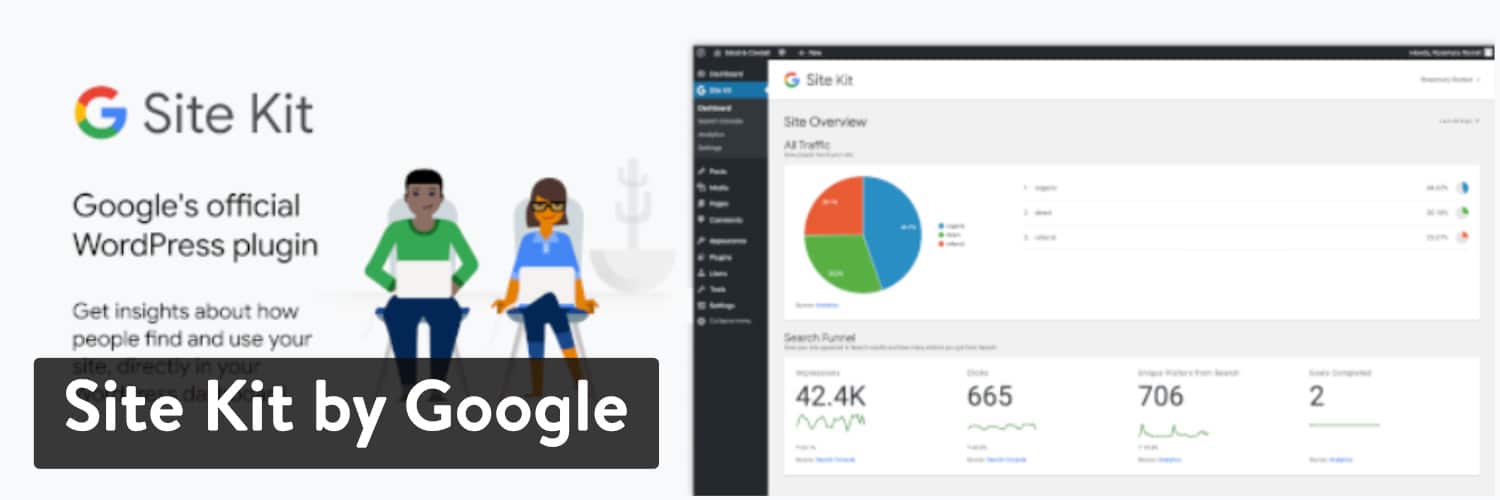
Credit: kinsta.com
Monitoring And Analyzing Data
Once you integrate Google Analytics with WordPress using plugins, the next step is monitoring and analyzing data. This process helps you understand visitor behavior and improve your website. Using plugins, you can access detailed reports and interpret key metrics. Let’s dive into the specifics.
Accessing Reports
To access reports, navigate to the Google Analytics section in your WordPress dashboard. Most plugins provide a simple interface for viewing data.
- Click on Google Analytics in the dashboard menu.
- Select the Reports tab.
- Choose the desired date range for your report.
Here you will find various reports, including audience, acquisition, behavior, and conversion. Each report provides insights into different aspects of your website.
Interpreting Key Metrics
Understanding the key metrics in Google Analytics is crucial. Here are some essential metrics to monitor:
| Metric | Description |
|---|---|
| Users | The number of unique visitors to your site. |
| Sessions | The total number of visits to your site. |
| Bounce Rate | The percentage of visitors who leave after viewing one page. |
| Average Session Duration | The average time a visitor spends on your site. |
These metrics help you understand user behavior and engagement. For example, a high bounce rate may indicate issues with your site’s content or design.
To improve your site, focus on metrics that align with your goals. Regularly review reports to track progress and make data-driven decisions.
Troubleshooting Common Issues
Integrating Google Analytics with WordPress is a great way to track your website’s performance. But sometimes, things don’t go as planned. You may face issues that can affect your tracking data. Below, we discuss some common problems and how to fix them.
Plugin Conflicts
Plugins can sometimes interfere with each other. This can cause your Google Analytics plugin to malfunction. Here are some steps to identify and resolve plugin conflicts:
- Deactivate all your plugins except the Google Analytics plugin.
- Check if Google Analytics starts working. If it does, one of the other plugins is causing the conflict.
- Reactivate each plugin one at a time. Check Google Analytics after activating each plugin.
- Once you find the conflicting plugin, consider replacing it with an alternative.
Tracking Discrepancies
Sometimes, the data in Google Analytics does not match your expectations. Tracking discrepancies can stem from various sources. Here are some common causes and solutions:
| Issue | Solution |
|---|---|
| Incorrect Tracking Code | Verify that you have installed the correct tracking code on your site. |
| Cache Issues | Clear your website’s cache to ensure the latest tracking code is being used. |
| Ad Blockers | Some users might use ad blockers that prevent tracking. Consider adding a note about this in your data analysis. |
By addressing these common issues, you can ensure accurate data tracking on your WordPress site.
Credit: mekshq.com
Frequently Asked Questions
How Do I Add Google Analytics To WordPress With A Plugin?
Install and activate a Google Analytics plugin like MonsterInsights. Connect the plugin to your Google Analytics account. Adjust the plugin settings as needed. Save changes to complete the setup.
How To Add Google Analytics To WordPress Without A Plugin?
To add Google Analytics to WordPress without a plugin, paste the tracking code in your theme’s header.php file before the closing tag.
How Do I Add Ga4 To WordPress?
To add GA4 to WordPress, install and activate the “Site Kit by Google” plugin. Connect your Google account. Select the website property. Complete the setup wizard to integrate GA4.
What Is The Best Plugin For WordPress Ga4?
The best plugin for WordPress GA4 is MonsterInsights. It offers seamless integration, user-friendly interface, and detailed analytics.
Conclusion
Integrating Google Analytics with WordPress using plugins is simple and effective. Follow the steps outlined and you’ll gather valuable insights. These insights help you understand your audience better. With this knowledge, you can improve your website’s performance. A good plugin makes this process hassle-free.
So, choose a reliable plugin and start tracking today. Your website’s growth depends on data. Make informed decisions using Google Analytics. Happy tracking!


