
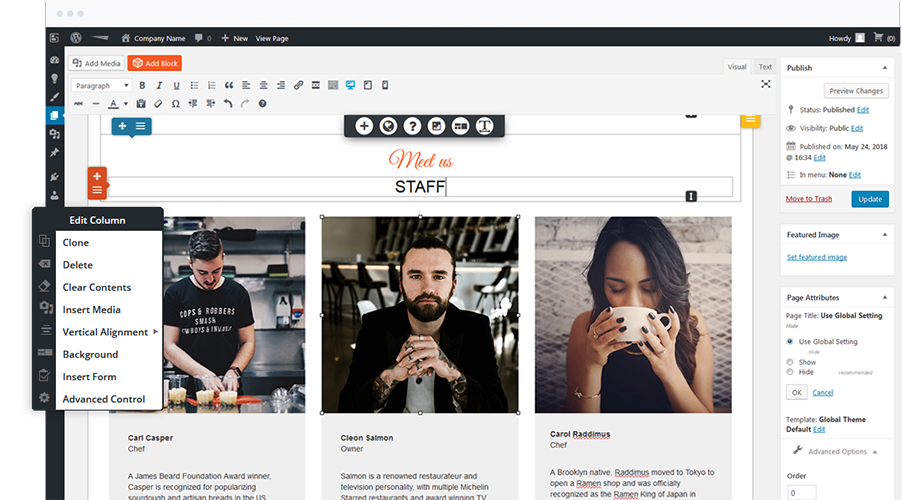
Using page builder plugins in WordPress can simplify website creation. They provide intuitive tools to design pages without coding skills.
Building a website may seem daunting, especially if you lack technical expertise. WordPress page builder plugins come to the rescue, offering user-friendly interfaces to create stunning web pages effortlessly. These plugins allow you to drag and drop elements, customize layouts, and see real-time changes.
Whether you are a beginner or an experienced developer, page builder plugins can enhance your workflow and creativity. With these tools, you can create professional-looking websites in no time. Ready to dive in? Let’s explore how to use these powerful plugins in WordPress.
Introduction To Page Builders
Creating a stunning website can be challenging. But with page builder plugins in WordPress, this task becomes easier and more enjoyable. These tools allow you to craft beautiful web pages without writing a single line of code.
What Are Page Builders?
Page builders are plugins for WordPress. They provide a visual interface for designing web pages. Instead of coding, you can use a drag-and-drop system. This makes building pages simple and intuitive.
These plugins come with pre-built elements. You can easily add buttons, images, and text blocks. Arrange them as you like. The goal is to make web design accessible to everyone.
Benefits Of Using Page Builders
Using a page builder offers several benefits:
- Ease of Use: Anyone can design a page. No coding skills needed.
- Speed: Create pages faster. Drag and drop elements into place.
- Flexibility: Customize every aspect of your design. Make your site unique.
Page builders also save time. They come with pre-designed templates. Choose a template and customize it. This helps you start quickly and stay on track.
These tools are SEO-friendly. Many page builders come with built-in SEO features. This ensures your site ranks well in search engines.
Examples Of Popular Page Builders
| Page Builder | Key Features |
|---|---|
| Elementor | Drag-and-drop editor, responsive design, many templates |
| Beaver Builder | Live front-end editing, mobile-friendly, reusable templates |
| Divi Builder | Visual editor, custom CSS control, numerous design elements |
Choose the right page builder for your needs. Each offers unique features to enhance your site.
Choosing The Right Plugin
Using a page builder plugin in WordPress can make creating pages easier. But choosing the right plugin is crucial. It impacts your site’s design and performance. This section will help you choose the best plugin for your needs.
Popular Page Builder Plugins
There are several popular page builder plugins in WordPress. Elementor is one of the most widely used. It offers a drag-and-drop interface. Divi is another popular choice. It provides many templates and design options. Beaver Builder is known for its clean code and user-friendly design. WPBakery Page Builder is also popular. It integrates well with many themes and plugins.
Factors To Consider
Several factors help you choose the right plugin. Compatibility is key. Ensure the plugin works with your theme. Check for plugin updates and support. An active support team is crucial. Look for user reviews and ratings. They provide real-world insights. Consider the plugin’s features. Does it offer the tools you need? Think about ease of use. A user-friendly interface saves time. Performance is important. The plugin should not slow down your site. Finally, consider the cost. Free plugins are great, but paid versions offer more features.
Installing A Page Builder Plugin
Installing a Page Builder Plugin in WordPress can transform your website design process. These plugins allow you to create visually stunning pages without coding. Follow the steps below to install a page builder plugin and address common installation issues.
Step-by-step Installation Guide
Installing a page builder plugin is straightforward. Follow these steps:
- Log in to your WordPress dashboard.
- Navigate to the Plugins section.
- Click on Add New.
- In the search bar, type the name of your desired page builder plugin.
- Click on Install Now next to the plugin.
- Once installed, click Activate.
Your page builder plugin is now ready to use. You can start building pages immediately.
Common Installation Issues
Sometimes, you may face issues during installation. Here are some common problems and their solutions:
| Issue | Solution |
|---|---|
| Plugin not installing | Check your internet connection and try again. |
| Plugin not activating | Ensure your WordPress version is compatible with the plugin. |
| Conflict with other plugins | Deactivate other plugins and activate them one by one to find the conflict. |
If these solutions do not work, visit the plugin’s support forum. You can find help from other users and developers.
Getting Started With Page Builders
Page builders are powerful tools in WordPress. They make designing web pages easier. Even beginners can create stunning layouts without coding. First, you need to install a page builder plugin. Popular choices are Elementor, Beaver Builder, and Divi.
Once installed, page builders provide a visual interface. This allows you to drag and drop elements. You can add text, images, and videos effortlessly. Let’s dive into how to use these tools effectively.
Creating Your First Page
To create your first page, go to the WordPress dashboard. Click on “Pages” and then “Add New.” You will see the option to use your page builder. Select it to start building your page.
Start by choosing a template or a blank page. Templates offer pre-designed layouts. They save time and give you a structure to work with. If you prefer starting from scratch, select the blank option.
Now, you can drag elements from the sidebar. Place them on your page where you want. Add text blocks, images, and buttons as needed. Customize each element to fit your design.
Understanding The Interface
The interface of page builders is user-friendly. On the left, you’ll find a sidebar with different elements. These include headings, images, text blocks, and more. Drag these elements onto your page.
Each element is customizable. Click on an element to edit it. You can change text, font size, color, and other settings. The right sidebar usually shows settings for the selected element.
There are also sections and columns for layout. Sections divide your page into rows. Columns divide sections into smaller parts. This helps in organizing your content neatly.
Preview your page before publishing. Make sure everything looks good on different devices. Save your work often to avoid losing changes.
Customizing Layouts
Customizing layouts in WordPress can transform your website’s appearance. Using page builder plugins, you can easily create and adjust layouts. This allows you to showcase content in an engaging way. Let’s explore how to do this using pre-built templates and designing custom layouts.
Using Pre-built Templates
Pre-built templates save time. They offer a quick start for your website design. Most page builder plugins provide a variety of templates. These templates are tailored for different niches and purposes.
To use pre-built templates:
- Open the Page Builder Plugin: Navigate to the plugin’s interface.
- Select a Template: Browse the library of templates.
- Apply the Template: Click to apply it to your page.
- Customize: Modify text, images, and colors as needed.
Templates can be a great starting point. They help maintain a professional look with minimal effort.
Designing Custom Layouts
Designing custom layouts gives you complete control. You can tailor every aspect to fit your brand. Page builder plugins often provide drag-and-drop functionality. This makes creating custom layouts easy, even for beginners.
To design custom layouts:
- Add Rows and Columns: Structure your page by adding rows and columns.
- Insert Widgets: Populate your layout with widgets like text, images, and buttons.
- Adjust Spacing: Use padding and margins to create a balanced look.
- Style Elements: Customize fonts, colors, and backgrounds to match your brand.
Experiment with different layouts. This will help you find what works best for your content.
Code Snippet Example
Here is a simple example of how a custom layout might look in code:
Welcome to Our Site
Discover our services and offerings.

This code creates a simple two-column layout. The first column contains text. The second column includes an image.
Customizing layouts with page builder plugins in WordPress is straightforward. Whether using pre-built templates or designing custom layouts, you can create a visually appealing website.
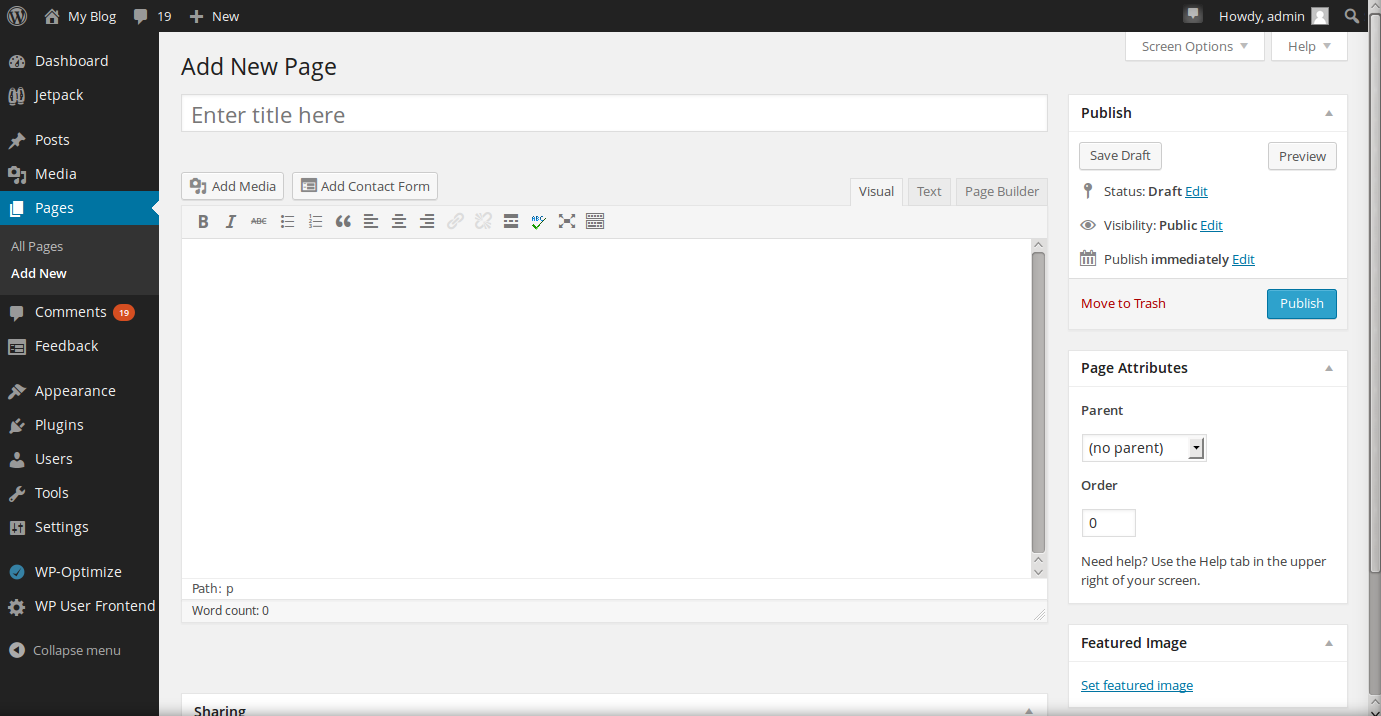
Credit: www.inmotionhosting.com
Adding Elements To Your Page
Using page builder plugins in WordPress allows you to easily add and customize elements on your web pages. This process is user-friendly and does not require any coding knowledge. By leveraging drag-and-drop functionality, you can build visually appealing pages tailored to your needs.
Common Elements And Widgets
Page builder plugins come with a variety of common elements and widgets that you can add to your page. These elements help you create a well-structured and engaging layout.
- Text Boxes: Add paragraphs and headings to convey your message clearly.
- Images: Insert images to make your content visually appealing.
- Buttons: Create call-to-action buttons to guide user interaction.
- Videos: Embed videos to provide more engaging content.
- Galleries: Showcase multiple images in an organized manner.
- Icons: Use icons to highlight important points.
Advanced Elements And Features
For those looking to enhance their pages further, page builder plugins also offer advanced elements and features. These elements allow for more interactive and dynamic content.
| Element | Description |
|---|---|
| Sliders | Display a series of images or content that users can slide through. |
| Accordions | Organize content in collapsible sections to save space. |
| Tabs | Divide content into multiple tabs for better organization. |
| Forms | Create contact forms for user interaction and data collection. |
| Maps | Embed interactive maps to show locations. |
These advanced features help make your website more functional and user-friendly. Experiment with different elements to find the best combination for your site.
Optimizing Page Performance
Optimizing page performance is crucial for a successful WordPress site. Page builder plugins can impact your site’s speed and SEO. Ensuring your site runs efficiently will improve user experience and search engine rankings.
Speed Optimization Tips
Fast loading times are essential for user retention. Use lightweight themes. Avoid bloated ones. Optimize images by compressing them. Choose the right format. PNGs for graphics, JPEGs for photos. Use lazy loading to delay image loading. This saves bandwidth.
Limit the number of plugins. Too many plugins can slow down your site. Use a caching plugin. This will store static versions of your pages. Your server will handle fewer requests. Use a content delivery network (CDN). CDNs store copies of your site on multiple servers worldwide.
Seo Best Practices
Good SEO ensures your site ranks well. Use clean, readable URLs. Include relevant keywords in your content. Write clear and concise meta descriptions. These summaries appear in search results. Focus on mobile optimization. Many users browse on mobile devices. A responsive design is crucial.
Ensure your page builder outputs clean HTML. Clean code is easier for search engines to crawl. Use proper heading tags. H1 for main titles, H2 for subheadings, and so on. Avoid keyword stuffing. Use keywords naturally. Build internal links. They help search engines understand your site’s structure.
Troubleshooting Common Issues
Page builder plugins in WordPress are powerful tools. They allow users to create stunning websites without needing to code. But they can sometimes cause issues. These issues can affect your site’s appearance or functionality. This section will help you troubleshoot common issues with page builder plugins.
Fixing Display Problems
Display problems are common with page builder plugins. Your site might not look the way you want. Start by clearing your browser cache. Cached data can sometimes show outdated versions of your site.
Next, check your theme settings. Some themes may not be compatible with certain page builders. Try switching to a default WordPress theme like Twenty Twenty-One. See if this fixes the issue.
If the problem persists, inspect your custom CSS. Custom CSS can override page builder settings. Remove or adjust any conflicting CSS rules. This should resolve most display issues.
Resolving Plugin Conflicts
Plugin conflicts can break your site or cause errors. To identify conflicts, deactivate all plugins except your page builder. Then, reactivate them one by one. Check your site after each activation.
If a conflict is found, look for updates. Outdated plugins can cause compatibility issues. Update your plugins to the latest versions.
Still having trouble? Consider using an alternative plugin. Some plugins offer the same features but work better with your setup. Always keep backups before making significant changes.
Conclusion And Next Steps
By now, you should have a good understanding of using page builder plugins in WordPress. These tools help you create professional-looking websites with ease. They offer a range of features and customization options. Let’s summarize the key points and explore some advanced features.
Summarizing Key Points
First, install a page builder plugin from the WordPress plugin directory. Popular choices include Elementor, Beaver Builder, and Divi. Each offers a drag-and-drop interface for designing pages. This interface allows you to add and arrange elements like text, images, and widgets.
Customize your pages by selecting pre-designed templates or building from scratch. Use the plugin’s settings to adjust colors, fonts, and layouts. Preview changes in real-time to see how your site will look to visitors.
Publish your pages once you are satisfied with the design. Revisit and update them as needed. Most plugins also offer responsive design features. This ensures your website looks great on all devices.
Exploring Advanced Features
As you become more comfortable, explore advanced features of your chosen plugin. Many plugins offer custom CSS options for added flexibility. This allows you to tweak your design beyond the basic settings.
Look into using global widgets and templates. These features let you reuse elements across multiple pages. This saves time and ensures consistency in your design.
Experiment with dynamic content. Some plugins allow you to display different content based on user interactions. This feature can enhance user experience and engagement.
Integrate third-party tools and plugins to extend functionality. For example, add contact forms, sliders, or e-commerce features. This makes your website more interactive and useful to visitors.
Stay updated with new releases and updates from the plugin developers. Regular updates often include new features, security patches, and improvements. Keeping your plugin updated ensures optimal performance and security.
Using page builder plugins in WordPress simplifies the web design process. Whether you are a beginner or an advanced user, these tools offer valuable features. Continue exploring and experimenting to create the best website for your needs.
Credit: codecanyon.net
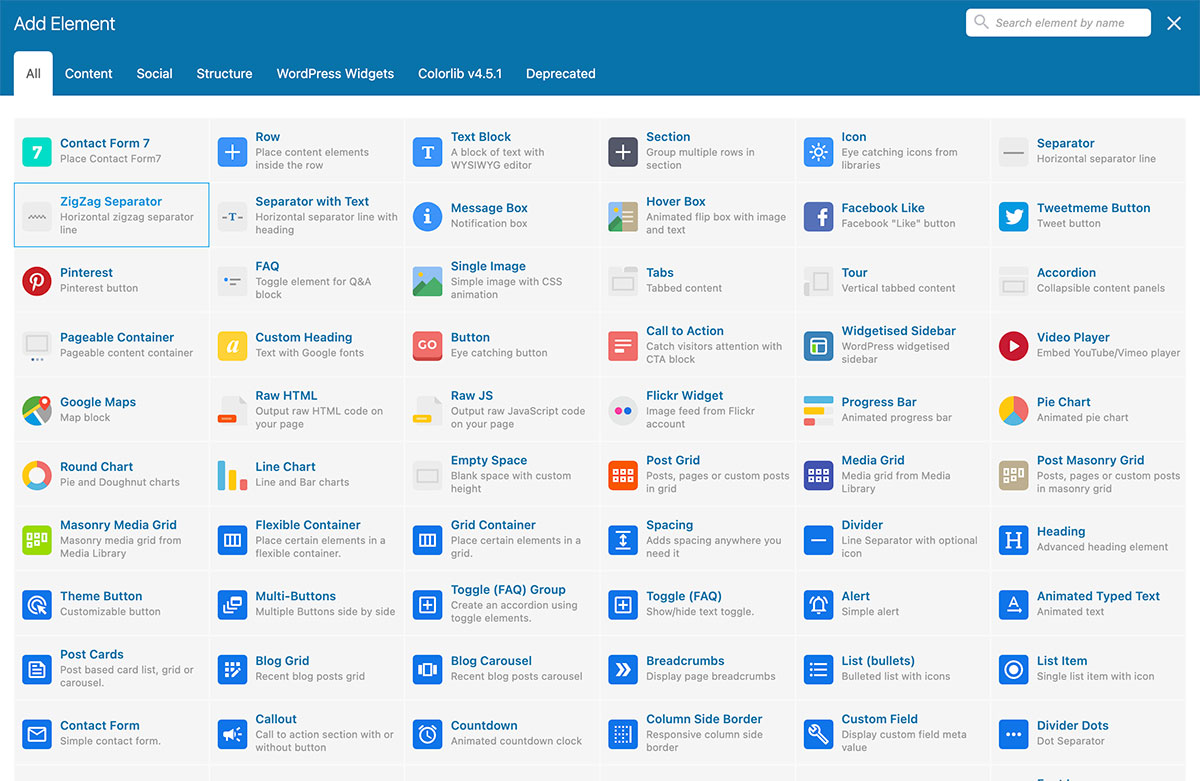
Credit: colorlib.com
Frequently Asked Questions
How To Use Wp Page Builder?
To use WP Page Builder, install and activate the plugin. Create a new page and click “Edit with WP Page Builder”. Use drag-and-drop elements to design your page. Save and publish your changes.
What Is A WordPress Page Builder Plugin?
A WordPress page builder plugin helps create and customize website pages without coding. It uses a drag-and-drop interface.
How Does Page Builder Work?
A page builder lets you create and design web pages using a drag-and-drop interface. It’s user-friendly and requires no coding.
How Do I Use Page List Plugin In WordPress?
Install and activate the Page List plugin. Use the shortcode [pagelist] in your post or page. It will display a list of pages. Customize with parameters as needed.
Conclusion
Using page builder plugins in WordPress can simplify your web design process. They allow you to create stunning pages without coding skills. Choose a plugin that fits your needs and start experimenting. Practice will make you more comfortable with the tools.
Remember to save your work regularly. With time, your pages will look professional and engaging. Happy building!


