
Struggling with domain issues can be frustrating. Resolving them quickly is crucial for website performance.
Domain problems can disrupt your online presence. They can cause website downtime or email issues. These problems might stem from DNS errors, domain registration issues, or incorrect settings. Understanding how to troubleshoot domain issues is essential for website owners. This guide provides clear steps to identify and fix common domain problems.
By following these steps, you can ensure your site runs smoothly and avoid costly downtime. Let’s dive into the solutions that will help you maintain a reliable online presence.
Identifying Domain Issues
Experiencing domain issues can be frustrating. It disrupts your online presence and affects your website’s performance. Identifying domain issues early can save time and prevent bigger problems. This section will guide you through the common symptoms and initial checks to identify domain issues.
Common Symptoms
Several signs indicate domain issues. One common symptom is a website not loading. This could be due to DNS errors or domain expiration. Another symptom is email problems. Emails not being sent or received can point to domain issues. Search engine ranking drops can also signal domain problems. Visitors might report seeing security warnings when visiting your site. These symptoms need immediate attention.
Initial Checks
Start with basic checks. Verify if your domain name is still active. You can do this by checking the domain’s expiration date. Ensure your domain is renewed on time. Next, check DNS settings. Incorrect DNS settings can cause your site to go down. Use online tools to verify if your DNS records are correct. Also, check if your nameservers are pointing to the right hosting provider.
Test your website’s accessibility. Use different devices and networks. This helps rule out local network issues. Clear your browser cache and cookies. Sometimes, cached data causes problems. If your site is still down, contact your domain registrar. They can provide more information and assist with further troubleshooting.

Credit: dnsmadeeasy.com
Dns Configuration
Proper DNS Configuration is crucial for ensuring your domain works smoothly. Incorrect settings can lead to website downtime and email issues. This section will guide you through the essential aspects of DNS configuration, including DNS Records and Propagation Delays.
Dns Records
DNS records are the backbone of your domain’s functionality. They tell servers how to reach your website and email.
- A Record: Points your domain to an IP address.
- MX Record: Directs email to your email server.
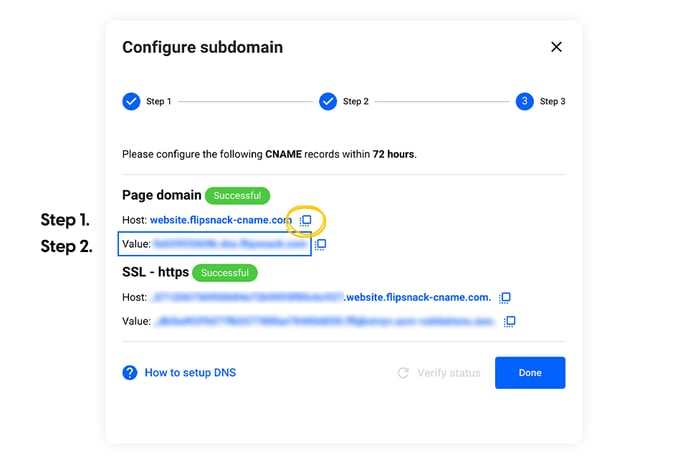
- CNAME Record: Maps an alias name to a true or canonical domain name.
- TXT Record: Provides text information to sources outside your domain.
Ensure all your DNS records are correctly set. Mistakes in these records can lead to service interruptions.
Propagation Delays
After updating DNS records, changes may not be immediate. This delay is known as DNS propagation.
Propagation can take from a few minutes to 48 hours. During this time, some users might see the old DNS information.
Factors affecting propagation delays:
- TTL (Time To Live): Lower TTL values can speed up propagation.
- DNS Caching: ISPs and browsers may cache old records.
- Global DNS Network: Changes must update across all DNS servers globally.
To check if your DNS changes have propagated, use online tools like WhatsMyDNS or DNS Checker.
Whois Lookup
WHOIS Lookup is a tool that helps you find information about a domain name. This includes the domain’s registration status, its owner, and contact details. Understanding WHOIS can help you troubleshoot domain issues efficiently.
Checking Registration
First, check the domain’s registration status. This reveals if the domain is currently registered, its expiration date, and the registrar company. This is crucial to ensure the domain is active and not expired.
| Field | Description |
|---|---|
| Domain Name | The name of the domain you are checking. |
| Registrar | The company where the domain is registered. |
| Expiration Date | The date when the domain registration will expire. |
Contact Information
WHOIS Lookup also provides the contact information of the domain owner. This includes the owner’s name, email, and phone number. Having this information helps you contact the owner for any issues related to the domain.
- Owner’s Name
- Email Address
- Phone Number
Make sure to verify the contact details. Inaccurate information can prevent effective communication.
In summary, using WHOIS Lookup to check registration and contact information helps resolve domain issues. It offers a clear view of the domain’s status and the ability to reach the owner when needed.

Credit: www.youtube.com
Server Connectivity
Server connectivity issues can disrupt your website’s performance. This section focuses on diagnosing and fixing these issues. Let’s explore two essential tools and settings that can help you troubleshoot server connectivity problems.
Ping And Traceroute
Ping and Traceroute are useful tools for diagnosing connectivity issues.
- Ping: This command checks if a server is reachable. It sends packets to the server and waits for a response.
- Traceroute: This command traces the path packets take to reach the server. It shows each hop and the time it takes.
To use these tools, open your command prompt or terminal.
# Ping command
ping yourdomain.com

# Traceroute command (Windows)
tracert yourdomain.com

# Traceroute command (Mac/Linux)
traceroute yourdomain.com
Review the results. Look for high latency or packet loss. These indicate connectivity issues.
Firewall And Port Settings
Firewalls and ports can block connections to your server. Check these settings to ensure smooth connectivity.
Firewall Settings:
- Ensure your firewall allows traffic on necessary ports.
- Common ports include 80 (HTTP) and 443 (HTTPS).
Port Settings:
- Verify that your server listens on the correct ports.
- Use tools like nmap to scan open ports.
Here is how you can use nmap:
# Nmap command
nmap yourdomain.com
Review the results for any closed or filtered ports. Adjust your firewall and server settings as needed.
Ssl Certificate Problems
SSL certificates are crucial for securing your website. They encrypt data and ensure trust. But, issues with SSL certificates can disrupt your site’s security. Understanding and troubleshooting these problems is essential. Below, we explore common SSL certificate problems.
Certificate Expiry
SSL certificates have a validity period. Expired certificates can lead to security warnings for your visitors. To avoid this:
- Regularly check your certificate’s expiry date.
- Set reminders for renewal.
- Choose auto-renewal options if available.
Use tools like SSL Labs to monitor your certificate status. Keeping an eye on expiry dates ensures your site remains secure.
Mismatched Domains
A common issue is a mismatch between the SSL certificate and your domain. This can happen if:
- Your certificate is issued for www.yoursite.com but you use yoursite.com.
- You have multiple subdomains not covered by the certificate.
To fix this, ensure:
- Your SSL certificate matches all variations of your domain.
- You use a wildcard certificate for subdomains.
- Verify your domain during the certificate issuance process.
Properly configured domains prevent mismatch issues. This ensures a seamless, secure experience for your users.
Credit: help.flipsnack.com
Email Delivery Issues
Email delivery issues can cause significant disruptions in communication. These issues often stem from incorrect domain settings. Fixing them ensures your emails reach their intended recipients. This section will guide you through common troubleshooting steps.
Mx Records
MX (Mail Exchange) records direct email to your mail server. They are crucial for receiving emails. If incorrectly set, emails will not reach you.
To check your MX records:
- Log in to your domain registrar’s control panel.
- Navigate to the DNS settings.
- Locate the MX records section.
Your MX records should point to the correct mail server. Use tools like MXToolbox to verify your settings. Adjust them if necessary.
Spf, Dkim, And Dmarc
These are email authentication protocols. They prevent spam and ensure your emails are trusted.
SPF (Sender Policy Framework) specifies which IP addresses can send emails for your domain. To set up SPF:
- Add a TXT record in your DNS settings.
- Include your mail server’s IP address.
- Use syntax like:
v=spf1 ip4:your-mail-server-ip ~all
DKIM (DomainKeys Identified Mail) adds a digital signature to your emails. This ensures they haven’t been tampered with.
To set up DKIM:
- Generate a public and private key pair.
- Add the public key as a TXT record in your DNS settings.
- Configure your mail server to sign outgoing emails with the private key.
DMARC (Domain-based Message Authentication, Reporting, and Conformance) builds on SPF and DKIM. It provides instructions on how to handle unauthenticated emails.
To set up DMARC:
- Add a TXT record in your DNS settings.
- Use syntax like:
v=DMARC1; p=none; rua=mailto:your-email@example.com - Replace
p=nonewithp=quarantineorp=rejectfor stricter policies.
Regularly monitor your SPF, DKIM, and DMARC settings. Adjust them as needed to ensure optimal email delivery.
Website Down
Experiencing a website down issue can be stressful. It disrupts your online presence and can affect your business. Let’s explore how to troubleshoot domain issues, starting with checking the server status and reviewing error logs.
Server Status
First, verify the server status to understand if the issue is on the server’s end. Follow these steps:
- Visit your hosting provider’s website.
- Look for a server status or system status page.
- Check for any reported outages or maintenance activities.
If your hosting provider reports no issues, the problem might be elsewhere. You can also use third-party tools like Pingdom or Uptime Robot to monitor your website’s uptime.
Error Logs
Reviewing error logs can provide insights into why your website is down. Here’s how you can access them:
- Log in to your hosting account.
- Navigate to the control panel (cPanel, Plesk, etc.).
- Locate the Error Logs section.
Here are common error log entries and their meanings:
| Error Code | Meaning |
|---|---|
| 404 | Page not found. Check the URL. |
| 500 | Internal server error. Check server configurations. |
| 403 | Forbidden. Check file permissions. |
Fixing these errors often involves updating configurations or permissions. If unsure, contact your hosting provider’s support for help.
Advanced Tools
Advanced tools can make domain troubleshooting much easier. They provide detailed insights and help resolve issues faster. This section covers some of the best advanced tools for domain troubleshooting.
Online Diagnostic Tools
Online diagnostic tools offer quick and accurate domain analysis. They can detect common issues, such as DNS misconfigurations or propagation delays. Here are some popular options:
- DNSStuff: Provides DNS reports and network monitoring.
- MXToolbox: Checks DNS health and MX records.
- WhatsMyDNS: Monitors DNS propagation globally.
These tools generate comprehensive reports. They help you identify and fix issues quickly.
Browser Developer Tools
Browser developer tools are built into most browsers. They help diagnose domain-related problems. Here’s how to use them:
- Open your browser (Chrome, Firefox, or Edge).
- Press F12 or right-click and select Inspect.
- Navigate to the Network tab to view requests.
In the Network tab, you can see:
| Column | Data |
|---|---|
| Request URL | Shows the requested URL. |
| Status | HTTP status code of the request. |
| Time | Time taken for the request. |
These tools help identify errors, such as 404 not found or 500 server error.
Using these advanced tools, you can effectively troubleshoot domain issues.
Contacting Support
Experiencing domain issues can be frustrating. Contacting support is often the best way to resolve these problems. This guide will help you understand whom to contact and what information to provide. Let’s dive into the details of contacting your hosting provider and domain registrar.
Hosting Provider
If you face issues with your domain, start by contacting your hosting provider. They manage the server where your website is hosted. Common problems include server downtime or misconfigured settings.
Provide them with your account details and describe the issue clearly. This helps them understand the problem faster. Most hosting providers offer 24/7 support through chat, email, or phone.
Check their support section on the website for guides and troubleshooting steps. Following these steps can sometimes resolve the issue without needing to contact support.
Domain Registrar
Issues with your domain registration? Reach out to your domain registrar. They handle domain name registration and management.
Common issues include expired domains, DNS settings, or transfer problems. Provide your domain name and any error messages you see. This helps the support team address your issue quickly.
Domain registrars also offer support through various channels. Use the one that suits you best. Their website may also have FAQs or help articles to assist you.
Frequently Asked Questions
How Do You Troubleshoot Dns Problems?
To troubleshoot DNS problems, check your internet connection, flush DNS cache, restart router, and verify DNS server settings. Use command-line tools like nslookup and ping to diagnose issues. Update network drivers if needed.
How Do I Troubleshoot Domain Join Issues?
Check network connectivity. Verify DNS settings. Ensure correct domain name. Confirm time synchronization. Review event logs for errors.
How To Check Domain Name Issues?
Check domain issues by using online tools like WHOIS, DNS Checker, and Google Search Console. Verify DNS settings and renewal status.
What Is The Tool To Troubleshoot Dns?
The tool to troubleshoot DNS issues is “nslookup. ” It helps diagnose and resolve DNS problems effectively.
Conclusion
Troubleshooting domain issues can seem challenging, but it gets easier with practice. Start by checking basic settings like DNS records and domain status. Use online tools to identify common problems. Contact your domain registrar for support if needed. Stay patient and systematic in your approach.
Regular monitoring can prevent future issues. By following these steps, you can keep your domain running smoothly. Remember, consistency is key to managing domain health effectively. Happy troubleshooting!


