
Backing up your WordPress site is crucial. It protects your data from loss.
Using plugins makes this task easier and more efficient. Imagine losing all your hard work on your WordPress site. Scary, right? A reliable backup can save you from such nightmares. WordPress plugins offer simple solutions to safeguard your content. They automate the backup process, ensuring your data stays safe.
In this guide, you will learn how to use these plugins to back up your site effectively. Whether you are a beginner or an experienced user, this information will help you keep your site secure. Let’s dive in and discover the best ways to protect your WordPress site with plugins.
Choosing The Right Plugin
Backing up your WordPress site is essential for security and peace of mind. Choosing the right plugin to manage this task can be daunting. This guide will help you understand what to look for in a backup plugin and introduce some popular options.
Factors To Consider
Not all backup plugins are created equal. Here are some key factors to consider:
- Ease of Use: The plugin should be user-friendly with a simple interface.
- Backup Frequency: Check if the plugin allows for scheduled backups.
- Storage Options: Does it offer cloud storage options like Google Drive or Dropbox?
- Restore Process: The plugin should make it easy to restore your site from a backup.
- Support and Updates: Ensure the plugin is regularly updated and has good customer support.
Popular Backup Plugins
Here are some widely-used WordPress backup plugins:
| Plugin | Key Features | Price |
|---|---|---|
| UpdraftPlus | Easy to use, cloud storage options, scheduled backups | Free / Premium |
| BackupBuddy | Complete backup solution, malware scan, remote storage | Premium |
| Duplicator | Site migration, manual backups, cloud storage | Free / Premium |
| WP Time Capsule | Incremental backups, cloud integration, easy restores | Free / Premium |
Each of these plugins has its strengths. Consider your specific needs and preferences when choosing the right one for your site.

Credit: blog.hubspot.com
Installing A Backup Plugin
Backing up your WordPress site is crucial. It ensures you don’t lose data. One of the easiest ways to do this is by using a plugin. This section will guide you through the process of installing a backup plugin.
Step-by-step Installation
Follow these steps to install a backup plugin:
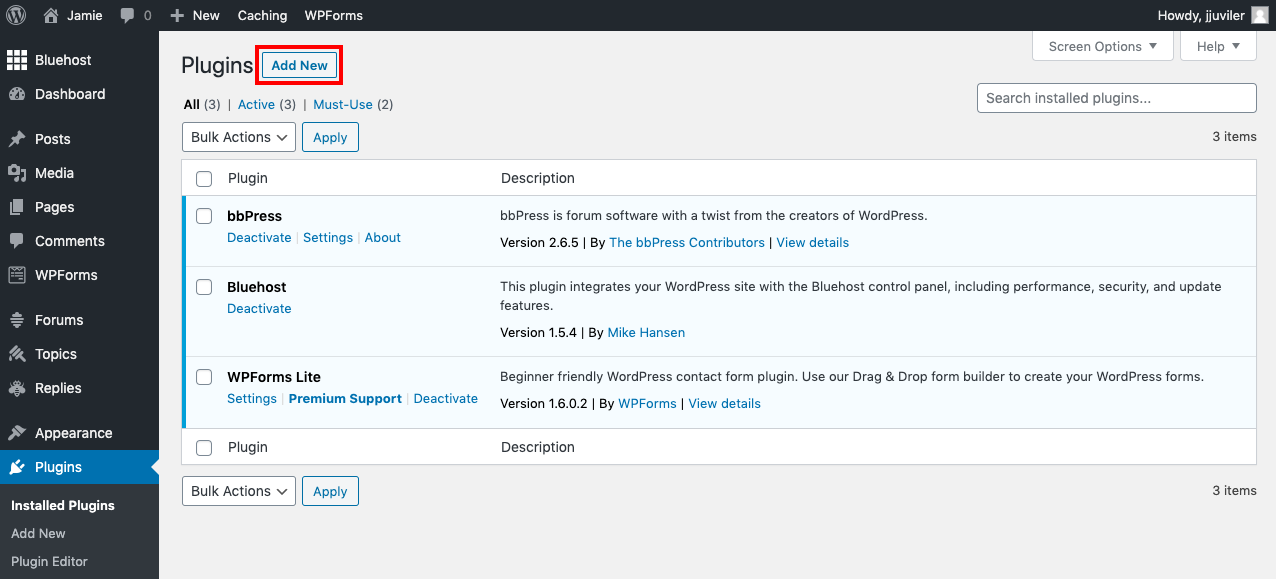
- Go to your WordPress dashboard.
- Navigate to Plugins > Add New.
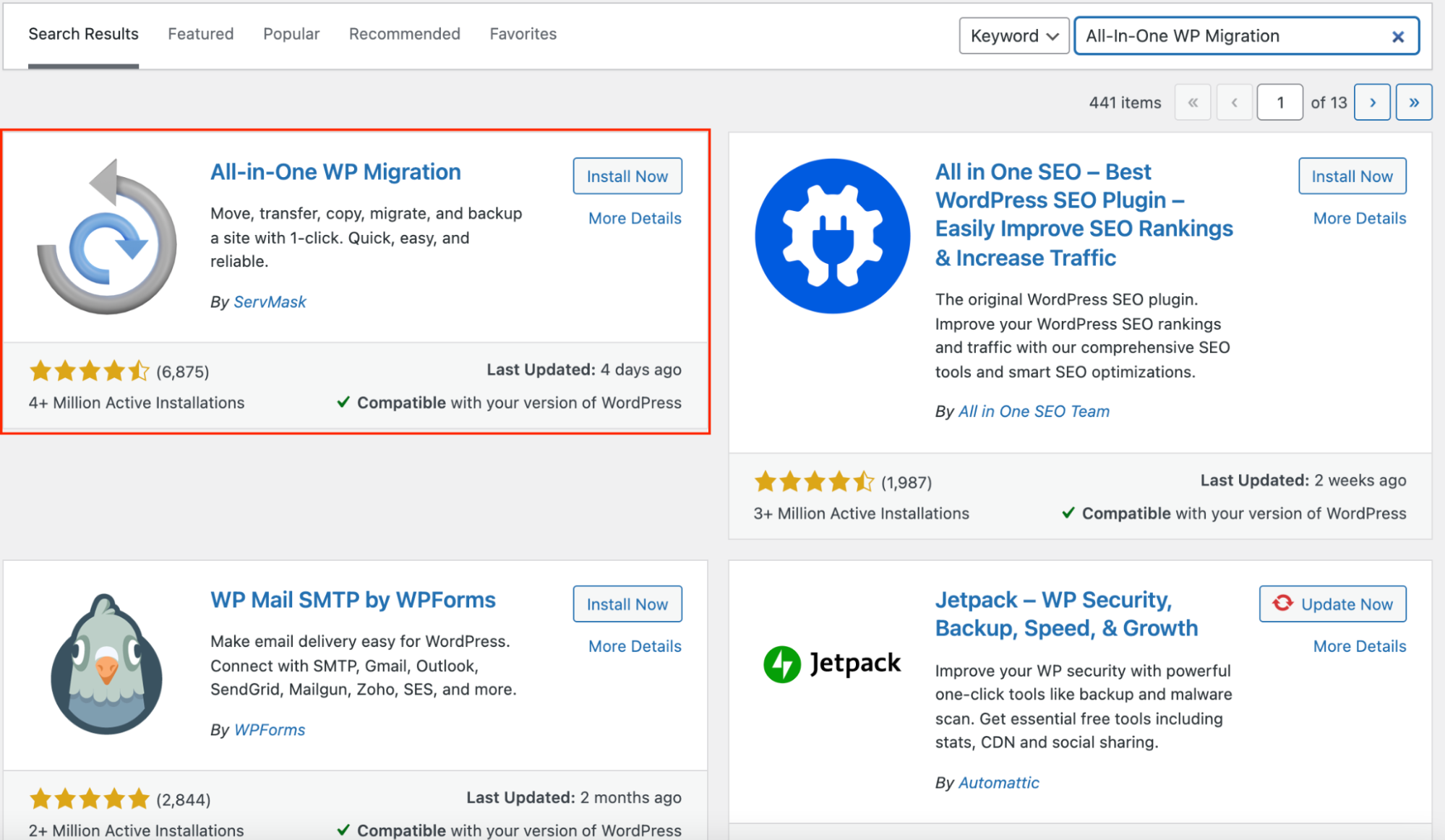
- In the search bar, type “backup plugin“.
- Select a plugin from the list, like UpdraftPlus or BackupBuddy.
- Click Install Now and wait for the installation to complete.
- Once installed, click Activate.
Configuring Settings
After installing the plugin, you need to configure it. Here’s how:
- Go to Settings in your WordPress dashboard.
- Select the newly installed plugin.
- Choose your backup schedule. This could be daily, weekly, or monthly.
- Select where to store your backups. Options often include cloud services like Google Drive or Dropbox.
- Set up email notifications for backup success or failure.
- Click Save Changes to apply the settings.
By following these steps, you ensure your WordPress site is backed up regularly. This protects your data and provides peace of mind.
Setting Up Automated Backups
Setting up automated backups for your WordPress site is essential. It ensures your data is safe. Using plugins makes this process easy. Automated backups run without your intervention. This saves you time and effort. Let’s dive into how you can set this up.
Scheduling Backups
First, you need to schedule your backups. Most backup plugins offer this feature. Decide how often you want your site backed up. Daily, weekly, or monthly? The choice depends on how often you update your site.
Once you choose a frequency, set the schedule in the plugin settings. Your backups will then run automatically. You won’t have to worry about forgetting to do it.
Customizing Backup Frequency
Customizing the backup frequency is also important. Some parts of your site might change more often. For example, your posts and comments. You might want to back these up more frequently.
Other parts, like themes and plugins, change less often. You can back these up less frequently. Most plugins let you set different schedules for different parts of your site. This ensures you use your storage efficiently.
Remember, having a regular backup plan is crucial. It keeps your site safe from data loss. Set it up once, and let the plugin handle the rest.
Manual Backup Process
Backing up your WordPress site is crucial. A manual backup gives you control. Here’s how to do it step-by-step.
Initiating A Manual Backup
First, log into your WordPress dashboard. Then, navigate to Tools > Export. Choose the content you want to export. Click Download Export File.
Next, access your hosting account. Open the file manager. Find your WordPress directory. Download the wp-content folder. This contains your themes, plugins, and uploads.
Finally, export your database. Most hosts offer phpMyAdmin. In phpMyAdmin, select your WordPress database. Click Export. Choose the Quick export method. Click Go to download the database file.
Verifying Backup Files
Ensure all files are downloaded. Check the wp-content folder. Confirm your themes, plugins, and uploads are there.
Open the database file. It should be a .sql file. Make sure it’s not empty. Verify the file size. A small size might indicate an issue.
Store your backup files safely. Use cloud storage or an external hard drive. It’s best to have multiple backup copies.
| Step | Description |
|---|---|
| 1 | Export WordPress content via the dashboard |
| 2 | Download the wp-content folder from the file manager |
| 3 | Export the database using phpMyAdmin |
| 4 | Verify all files and store them safely |
Follow these steps to protect your site. Manual backups ensure you have control over your data.
Storing Your Backups
Storing your backups is a crucial step in securing your WordPress site. Backups help protect your data from unexpected issues. Storing them correctly ensures you can restore your site quickly. There are two main storage options: local storage and cloud storage.
Local Storage Options
Local storage means saving backups on your computer or server. This option is simple and quick. Use USB drives, external hard drives, or your computer’s hard disk. Local storage provides easy access to your files. But it also has some risks. Your computer or server could fail. Physical damage or theft can also occur. It’s good to use local storage but always have a secondary option.
Cloud Storage Solutions
Cloud storage offers a more secure way to store backups. Services like Google Drive, Dropbox, and Amazon S3 are popular choices. These services store your backups online. This keeps them safe from physical damage or theft. Cloud storage also allows you to access your backups from anywhere. It automates the backup process, making it less hands-on. Make sure to choose a reliable cloud service. Check its storage limits and security features.
Credit: www.a2hosting.com
Restoring Your Site
Easily back up your WordPress site using plugins. Protect your data and restore your site quickly. Regular backups ensure peace of mind.
Backing up your WordPress site is crucial. Sometimes things go wrong. You might need to restore your site. When that happens, it’s good to know how to do it.When To Restore
Restoring your site is needed during emergencies. It helps when your site crashes. It can fix issues after a hack. It also helps if an update breaks your site. Knowing when to restore saves time and stress.Step-by-step Restoration
First, log in to your WordPress dashboard. Go to the plugin you used for backup. Find the “Restore” option. Click on it. Next, choose the backup file you want to use. Make sure it’s the right one. Start the restoration process. Wait for it to complete. It might take a few minutes. After the restoration, check your site. Ensure everything is working. If there are issues, you may need to try another backup file. That’s it. Restoring your site with a plugin is simple. It keeps your site safe and running. “`Best Practices
Backing up your WordPress site is essential. It protects your data from loss. Using plugins makes the process easy. But, you must follow best practices to ensure safety. Here are two crucial steps.
Regular Backup Schedule
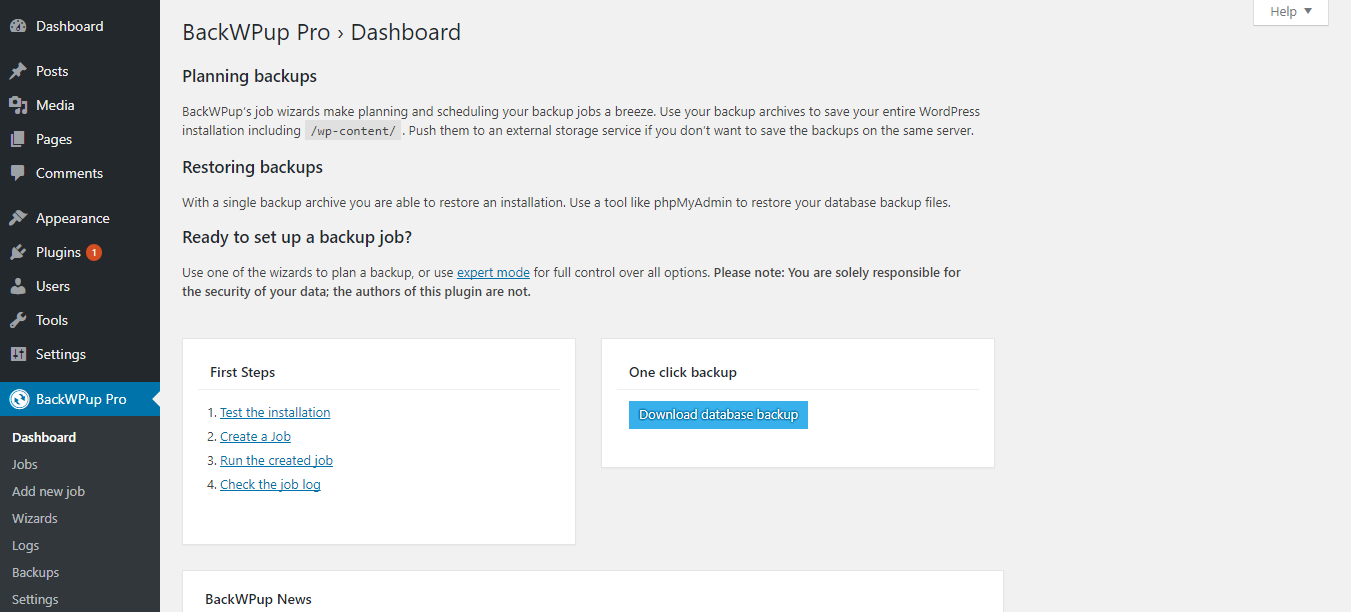
Set a regular backup schedule. Daily backups are ideal for active sites. Weekly backups may work for less active sites. The goal is to have the most recent data available. Consistency is key. Plugins like UpdraftPlus or BackWPup can automate this.
Testing Backup Integrity
Testing your backups is vital. A backup is useless if it doesn’t work. Restore the backup to a test site. Check if everything functions correctly. This ensures the backup is reliable. Most plugins offer restore options for testing. Regular testing builds confidence in your backup process.
Credit: backwpup.com
Troubleshooting
Backing up your WordPress site with plugins can sometimes lead to issues. Troubleshooting these problems is crucial to ensure that your backups are successful.
Common Issues
While using backup plugins, you may face some common issues. Here are a few:
- Backup process fails or stops midway.
- Backup files are incomplete or corrupt.
- Plugin conflicts with other installed plugins.
- Server timeout errors.
How To Resolve Errors
Resolving errors can be simple with the right approach. Follow these steps:
- Check plugin settings: Ensure the plugin settings are correct. Verify backup schedules and storage locations.
- Update plugins: Ensure all plugins are up-to-date. Outdated plugins can cause conflicts and errors.
- Increase server resources: Increase PHP memory limit or execution time. This helps with large backups.
- Clear cache: Clear your site and browser cache. Sometimes cache can cause issues with backups.
- Contact support: If issues persist, contact the plugin’s support team. They can provide specific solutions.
By following these steps, you can troubleshoot and resolve common backup issues. This ensures your WordPress site is always backed up and secure.
Frequently Asked Questions
How To Backup A WordPress Site With A Plugin?
To backup a WordPress site, install and activate a backup plugin like UpdraftPlus. Schedule automatic backups and store them on remote storage.
How Do I Export A WordPress Site With Plugins?
Export a WordPress site with plugins using a backup plugin like UpdraftPlus. Install, configure, and run the backup. Download the backup files.
What Is The Best Way To Back Up A WordPress Site?
The best way to back up a WordPress site is by using a reliable plugin like UpdraftPlus. Schedule regular backups. Store backups offsite, such as on Google Drive or Dropbox. Ensure backups include all files and the database. Test backups periodically to confirm their reliability.
How To Migrate A WordPress Site With A Plugin?
To migrate a WordPress site with a plugin, install and activate a migration plugin. Export your site using the plugin. Import the exported file on the new site using the same plugin. Ensure all settings are correct. Review the migrated site for errors.
Conclusion
Backing up your WordPress site with plugins is crucial. It protects your data. Simple steps make this process easy for everyone. Choose the right plugin for your needs. Regular backups ensure your site remains secure. Don’t wait until it’s too late.
Start backing up your WordPress site today. Secure your content, and keep your hard work safe. Remember, a backup can save you from potential data loss. So, take action now and keep your WordPress site protected.


