
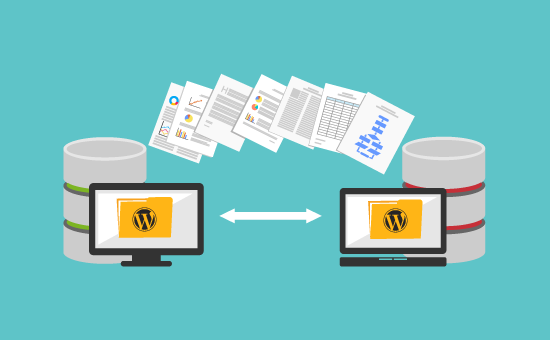
Migrating a website to a new host can seem daunting. But it is a manageable task with the right steps.
In this guide, you will learn how to migrate your website smoothly and efficiently. Changing your website’s host might be necessary for better performance, lower costs, or improved support. Whatever your reason, the process involves several important steps. From backing up your files to setting up your new hosting environment, each stage is crucial.
This blog post will walk you through the process, ensuring a seamless transition. You don’t need to be a tech expert; our simple instructions are designed for everyone. So, let’s dive in and get your website settled into its new home without any hassle.
Choosing A New Host
Migrating your website to a new host can seem daunting. Choosing the right host is crucial for a smooth transition. This section will guide you on how to select a new hosting provider.
Factors To Consider
When selecting a new host, consider these important factors:
- Uptime Guarantee: Ensure the host offers at least 99.9% uptime.
- Speed and Performance: Check if the host has fast servers.
- Customer Support: 24/7 support is essential for quick issue resolution.
- Security Features: Look for SSL certificates and DDoS protection.
- Scalability: Choose a host that can grow with your website.
- Price: Compare the cost and features of different plans.
Comparing Hosting Providers
Compare different hosting providers to find the best fit. Here is a table to help you compare:
| Provider | Uptime | Speed | Support | Security | Price |
|---|---|---|---|---|---|
| Host A | 99.9% | Fast | 24/7 | High | $10/month |
| Host B | 99.8% | Medium | 24/7 | Medium | $8/month |
| Host C | 99.7% | Fast | 24/5 | High | $12/month |
Use this table to compare the key features of each provider. Consider your website’s specific needs when making your choice.
Choosing the right host can make your migration process smoother and more efficient. Make sure to research thoroughly and select a host that matches your needs.

Credit: www.youtube.com
Backing Up Your Website
Before migrating your website to a new host, back up your website. This ensures you have a copy of all your files and data. If anything goes wrong during the migration, you can restore your site. There are two main methods to back up your website: Manual Backup Methods and Using Backup Plugins.
Manual Backup Methods
Manual backup involves saving your website files and database. Follow these steps:
- Connect to your current web server using FTP or SFTP.
- Download all your website files to your computer.
- Log in to your hosting control panel (e.g., cPanel).
- Find the phpMyAdmin tool and open it.
- Select your website’s database.
- Click the Export tab and choose the SQL format.
- Save the database file to your computer.
Manual backups are reliable but can be time-consuming. It requires some technical knowledge. Ensure you do not miss any files.
Using Backup Plugins
Using backup plugins can save time and simplify the process. Many plugins automate the backup process. Here are some popular plugins:
| Plugin Name | Features | Cost |
|---|---|---|
| UpdraftPlus | Automated backups, cloud storage options | Free/Paid |
| BackupBuddy | Scheduled backups, malware scans | Paid |
| Duplicator | Site migration, backup creation | Free/Paid |
To use a plugin, follow these steps:
- Install and activate your chosen backup plugin.
- Navigate to the plugin settings page.
- Set up your backup schedule and storage location.
- Run the first backup manually to ensure it works.
- Download the backup file to your computer.
Using plugins is easier for non-technical users. They offer additional features like scheduled backups and cloud storage integration.
Downloading Website Files
Downloading website files is a key step in migrating your website to a new host. This process ensures all your data moves safely. You can use an FTP client or access the cPanel File Manager.
Using Ftp Clients
An FTP client helps you transfer files between your computer and the server. Start by downloading a trusted FTP client like FileZilla. Install the client and open it. You will need your FTP credentials. These include the server address, username, and password.
Enter these details in the FTP client. Click “Quickconnect” to establish a connection. You will see two panels. The left panel shows your computer files. The right panel displays your server files. Navigate to your website’s root directory on the server.
Select all files and folders. Right-click and choose “Download.” The files will transfer to your computer. This process may take some time. Ensure you have a stable internet connection.
Accessing Cpanel File Manager
cPanel File Manager is another way to download website files. Log in to your cPanel account. Locate and click “File Manager.” A new window will open, showing your website files.
Navigate to the root directory. Select all files and folders. Click the “Compress” button. Choose a compression type, like ZIP. Click “Compress File(s).” A new compressed file will appear. Select the compressed file. Click “Download” to save it to your computer.
This method is simple and does not require extra software. Ensure the download is complete before proceeding.
Exporting Databases
Exporting databases is a crucial step in migrating your website to a new host. Your database contains all the essential data that your website needs to function properly. This includes user information, content, and site settings. Ensuring a smooth and accurate export will help prevent data loss and keep your website running smoothly after the migration.
Using Phpmyadmin
phpMyAdmin is a popular tool for managing MySQL databases. To export your database using phpMyAdmin, first log into your web hosting control panel. Navigate to phpMyAdmin and select the database you want to export. Click on the “Export” tab at the top of the page.
Choose the export method. “Quick” is the simplest option and works for most users. If you need more control, select “Custom” and configure the settings to your needs. Finally, click the “Go” button to download the database file to your computer.
Command Line Export
For those comfortable with command line tools, exporting a database can be quicker. Open your terminal or command prompt. Use the following command to export your database:
mysqldump -u username -p database_name > database_backup.sqlReplace “username” with your database username and “database_name” with the name of your database. You will be prompted to enter your password. Once entered, the command will create a backup file named “database_backup.sql” in your current directory.
Using command line export gives you more flexibility and can be faster than phpMyAdmin. It’s a preferred method for larger databases or those who enjoy working with terminal commands.
Setting Up New Hosting Account
Migrating your website to a new host can seem daunting. But breaking it down into manageable steps simplifies the process. One of the first steps is setting up your new hosting account. This ensures your website has a new home where visitors can access it smoothly.
Configuring Domain Settings
Configuring your domain settings is crucial for a smooth migration. Start by logging into your domain registrar’s account. Update the DNS records to point to your new hosting provider. This might involve changing the nameservers or updating the A record.
Nameservers typically look like ns1.newhost.com and ns2.newhost.com. Ensure you save the changes. It may take up to 48 hours for DNS changes to propagate. Meanwhile, your website remains accessible to users through the old host.
Creating New Database
Creating a new database is another vital step. Access your new host’s control panel and locate the database section. This is usually named MySQL Databases or something similar.
- Click on ‘Create New Database’.
- Provide a name for your database.
- Click on ‘Create’.
Next, create a user and assign it to the database:
- Create a new database user.
- Set a strong password.
- Assign this user to your newly created database.
- Ensure the user has all privileges.
Note: Keep a record of the database name, username, and password. You will need these details later when importing your old database.
Uploading Website Files
After you have backed up your website, the next step is uploading your files to the new host. This is a crucial part of the migration process. It ensures your website remains intact and fully operational. There are two main methods to upload your files: using FTP and cPanel File Manager. Each method has its own steps and advantages.
Ftp Upload Process
FTP stands for File Transfer Protocol. It is a standard network protocol used to transfer files between a client and a server.
Here is a step-by-step guide to using FTP:
- Install an FTP Client: Download and install an FTP client like FileZilla or Cyberduck.
- Connect to Your New Host: Open your FTP client and enter your new host’s FTP credentials (hostname, username, password, and port).
- Locate Your Website Files: Navigate to the folder on your computer where your website files are stored.
- Upload Files: Select all your website files and drag them into the ‘public_html’ directory on the new host.
Cpanel File Manager Upload
The cPanel File Manager is another method to upload your website files. This is especially useful if you prefer a web-based interface.
Follow these steps to use cPanel File Manager:
- Access cPanel: Log in to your new hosting account and open cPanel.
- Open File Manager: Navigate to the ‘File Manager’ under the ‘Files’ section.
- Navigate to ‘public_html’: Open the ‘public_html’ directory where your website files should be stored.
- Upload Files: Click the ‘Upload’ button and select your website files from your computer. Ensure all files are uploaded correctly.
Both FTP and cPanel File Manager are effective methods to upload website files. Choose the method that best suits your preference and technical comfort. Ensure all files are uploaded correctly to avoid potential issues with your website.
Importing Databases
Migrating a website to a new host involves importing databases for smooth data transfer. Ensure all database files are correctly uploaded to avoid data loss. Properly configuring database settings is crucial for a successful migration.
Migrating a website to a new host involves several critical steps. One of these steps is importing your database. The database holds all your website’s data, so this step is essential. Properly importing your database ensures your site runs smoothly on the new host.Phpmyadmin Import
phpMyAdmin is a user-friendly tool for managing databases. Most web hosts offer phpMyAdmin. To import your database using phpMyAdmin, follow these steps: 1. Open phpMyAdmin on your new host. 2. Select the database you created for your site. 3. Click the “Import” tab at the top of the page. 4. Click “Choose File” and select your database file. 5. Click “Go” to start the import process. Wait for the process to complete. If you see a success message, your database is imported.Command Line Import
The command line method is faster and more efficient. It is ideal for large databases. Follow these steps: 1. Open your terminal or command prompt. 2. Use the following command to import your database: “`bash mysql -u username -p database_name < path_to_your_sql_file.sql “` Replace “username” with your database username. Replace “database_name” with your database name. Replace “path_to_your_sql_file.sql” with the path to your SQL file. 3. Enter your database password when prompted. The import process will start. You will see a success message when it completes. Both methods are effective for importing databases. Choose the one that suits your needs best. Ensure your database imports correctly to keep your website functional. “`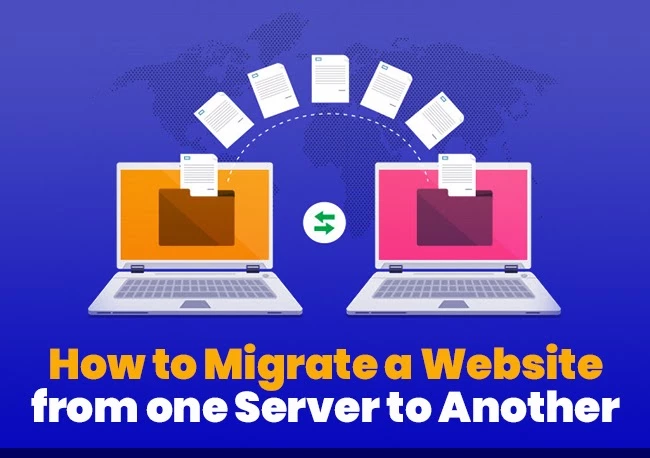
Credit: www.hostitsmart.com
Testing The Website
Testing the website is a critical step after migrating to a new host. This process ensures that your website functions as expected. It helps identify and fix any issues before going live. Thorough testing avoids disruptions and provides a seamless experience for users.
Checking Functionality
First, verify that all website features work correctly. Check links, forms, and interactive elements. Ensure that images and videos load properly. Test on different browsers and devices. This helps ensure compatibility across various platforms.
Resolving Common Issues
During testing, you might encounter issues. Common problems include broken links, missing images, and slow loading times. Address these issues promptly. Use tools to identify and fix broken links. Optimize images for faster loading. Check server response times and adjust settings if needed. Ensuring a smooth user experience is key to retaining visitors.
Updating Dns Settings
Migrating your website to a new host requires updating your DNS settings. This ensures that visitors find your website on the new server. Below, we will discuss changing nameservers and the DNS propagation time.
Changing Nameservers
Nameservers are essential for directing traffic to your new host. Follow these steps to change them:
- Log in to your domain registrar’s account.
- Locate the DNS settings or nameserver settings.
- Replace the current nameservers with those provided by your new host.
- Save the changes.
After changing the nameservers, your domain will start pointing to your new host. This process ensures that your visitors reach the new server.
Dns Propagation Time
DNS propagation refers to the time it takes for the changes to spread across the internet. During this period, some users may still reach your old server. The propagation time can vary:
- It usually takes between 24 to 48 hours.
- Some DNS providers update faster, within a few hours.
During propagation, monitor your website to ensure everything works smoothly. Using a DNS propagation checker can help track the progress.
Updating DNS settings is a crucial step in migrating your website. By understanding the process, you can ensure a smooth transition for your users.
Final Checks
After migrating your website to a new host, performing final checks is crucial. These checks ensure your site runs smoothly. They help verify data integrity and minimize downtime. Here’s how to approach these final steps effectively.
Monitoring Downtime
Downtime can affect user experience and SEO rankings. Here are some steps to monitor downtime:
- Use tools like UptimeRobot to track site availability.
- Check your website manually at different times of the day.
- Document any downtime incidents for further analysis.
Consistent monitoring can help you address issues quickly. It ensures your site stays live and accessible.
Ensuring Data Integrity
Ensuring data integrity is vital. You don’t want any data loss or corruption. Follow these steps to verify data integrity:
- Compare the size of files on the old and new hosts.
- Use checksum tools to verify file integrity.
- Manually review key data points in your database.
These steps help confirm that all your data has migrated successfully. They ensure your site functions correctly on the new host.

Credit: www.vodien.com
Frequently Asked Questions
Can You Transfer Your Website To A New Host?
Yes, you can transfer your website to a new host. Backup your files, choose a new host, and migrate your site.
How To Migrate A Website From One Server To Another Server?
To migrate a website, back up all files and databases. Transfer them to the new server. Update DNS settings. Test the new server thoroughly. Ensure everything works perfectly.
Can You Change The Host Of A Website?
Yes, you can change the host of a website. Backup your site, choose a new host, and migrate your files.
Can I Transfer My Website To Someone Else?
Yes, you can transfer your website to someone else. Update the domain registration and hosting details to the new owner.
Conclusion
Migrating your website to a new host can seem daunting. But with careful planning, you can ensure a smooth transition. Follow the steps outlined in this guide. Back up your data, choose the right host, and move your files carefully.
Test your site thoroughly before making it live. This process helps maintain your site’s performance and security. Now, you’re ready to migrate with confidence. Happy hosting!


